> ## Documentation Index
> Fetch the complete documentation index at: https://sourcebot-jminnetian-askskills.mintlify.site/llms.txt
> Use this file to discover all available pages before exploring further.
# Chat Sharing
Chat sharing allows you to share Ask Sourcebot conversations with others. Whether you want to share insights with your team or make a conversation publicly accessible, Sourcebot provides flexible sharing options.
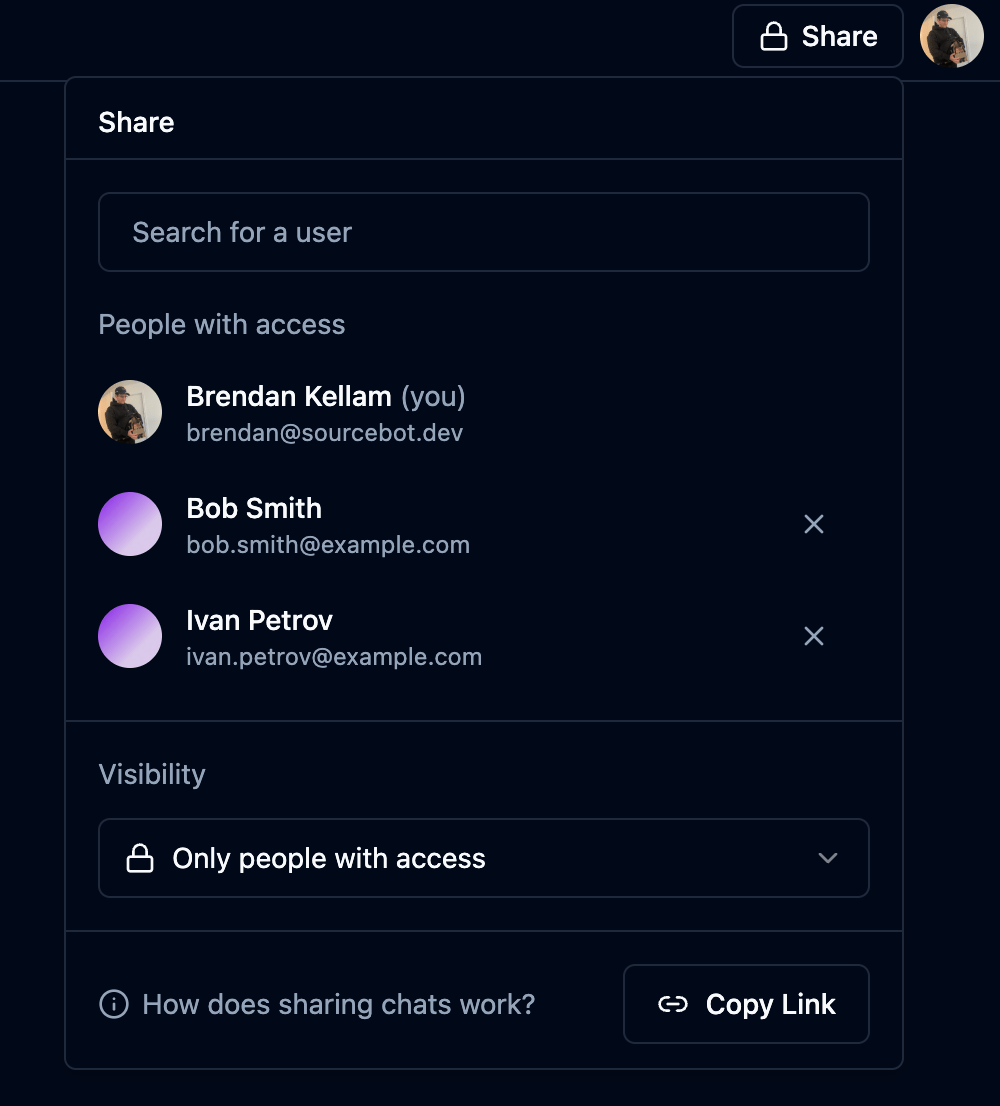 ## Visibility Options
Every chat has a visibility setting that controls who can access it:
## Visibility Options
Every chat has a visibility setting that controls who can access it:
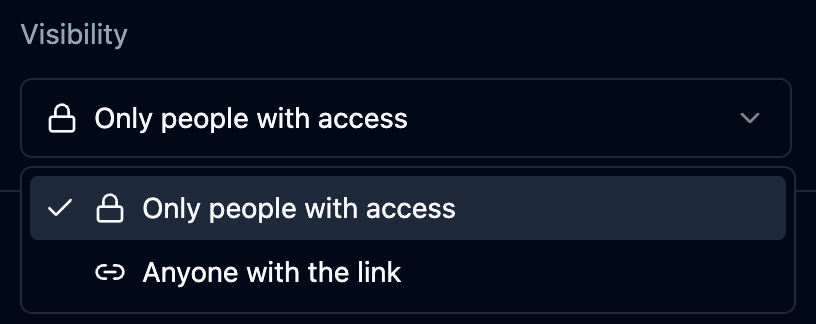 ### Private (Default)
* Only the chat owner can view the conversation
* Other users cannot access the chat, even with the link
* You can explicitly invite specific org members to view the chat (requires [Enterprise license](/docs/activating-a-subscription))
### Public
* Anyone with the link can view the conversation
* If [anonymous access](/docs/configuration/auth/access-settings) is enabled, no authentication is required to view
* Useful for sharing insights with your team or creating reference documentation
* Public chats can be duplicated by others
## Sharing with Specific Users
Sharing with specific users requires an [Enterprise License](/docs/activating-a-subscription).
### Private (Default)
* Only the chat owner can view the conversation
* Other users cannot access the chat, even with the link
* You can explicitly invite specific org members to view the chat (requires [Enterprise license](/docs/activating-a-subscription))
### Public
* Anyone with the link can view the conversation
* If [anonymous access](/docs/configuration/auth/access-settings) is enabled, no authentication is required to view
* Useful for sharing insights with your team or creating reference documentation
* Public chats can be duplicated by others
## Sharing with Specific Users
Sharing with specific users requires an [Enterprise License](/docs/activating-a-subscription).
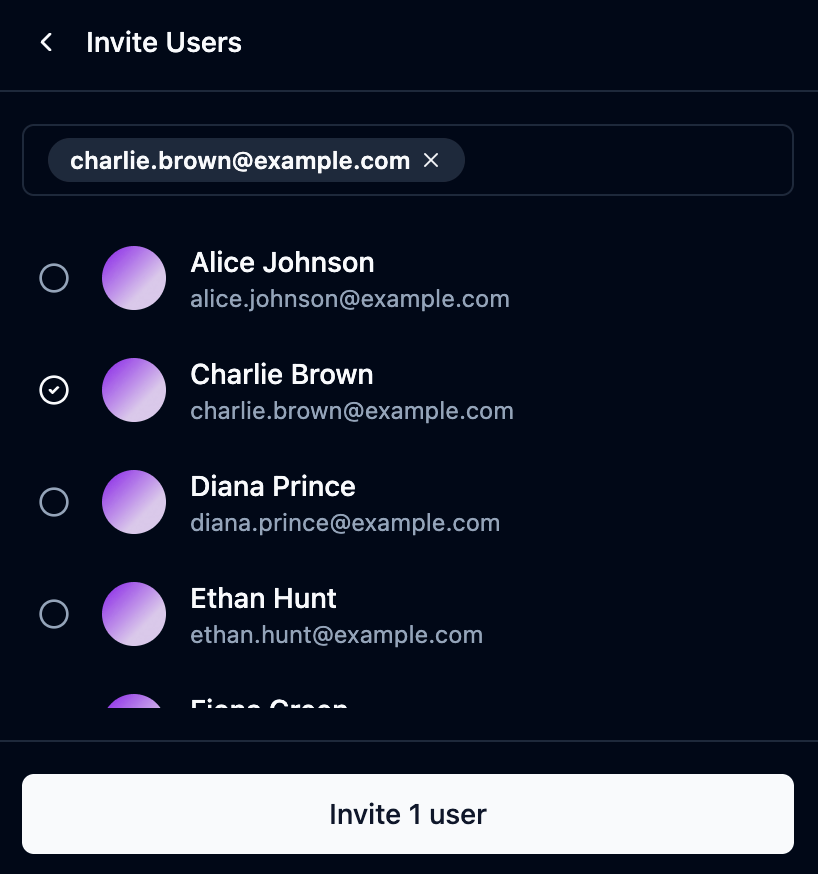 Chat owners can invite specific organization members to view their private chats:
1. Open the chat you want to share
2. Click the **Share** button in the top-right corner
3. Search for users by name or email
4. Select the users you want to invite
5. Click **Invite** to grant them access
Invited users will be able to:
* View the full conversation
* See all messages and code citations
* Navigate through referenced code snippets
Invited users **cannot**:
* Edit or delete the chat
* Send new messages
* Invite other users
### Removing Access
Chat owners can invite specific organization members to view their private chats:
1. Open the chat you want to share
2. Click the **Share** button in the top-right corner
3. Search for users by name or email
4. Select the users you want to invite
5. Click **Invite** to grant them access
Invited users will be able to:
* View the full conversation
* See all messages and code citations
* Navigate through referenced code snippets
Invited users **cannot**:
* Edit or delete the chat
* Send new messages
* Invite other users
### Removing Access
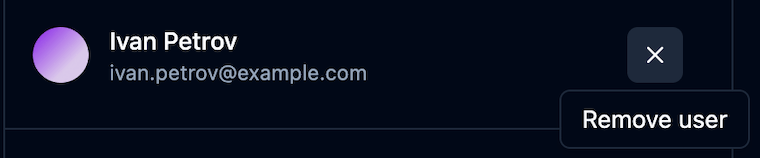 To remove a user's access to your chat:
1. Open the Share dialog
2. Find the user in the "People with access" list
3. Click the **X** button next to their name
To remove a user's access to your chat:
1. Open the Share dialog
2. Find the user in the "People with access" list
3. Click the **X** button next to their name